
Setup guide
Chrome disables every new extension in incognito mode by default — that’s true for Incognito Blocker too, which is a little ironic since its whole job happens in incognito. One extra toggle after install fixes it.
- 1
Find it in chrome://extensions
Install Incognito Blocker from the Chrome Web Store, then open
chrome://extensionsin a new tab. Find the Incognito Blocker card and click Details.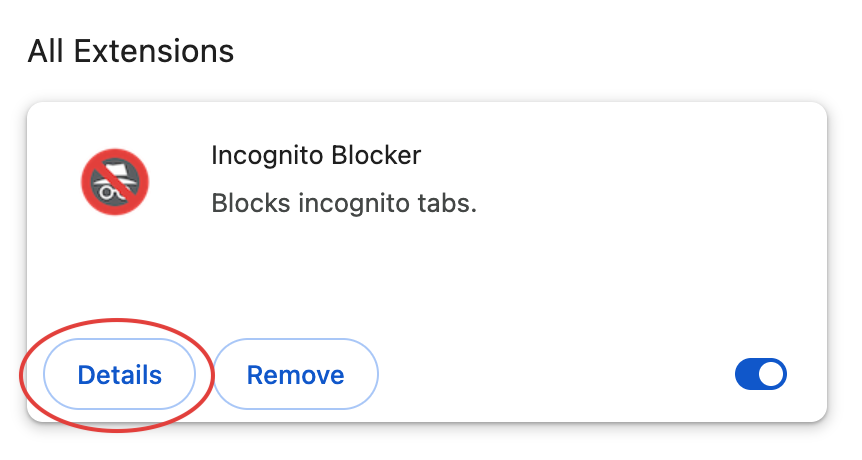
- 2
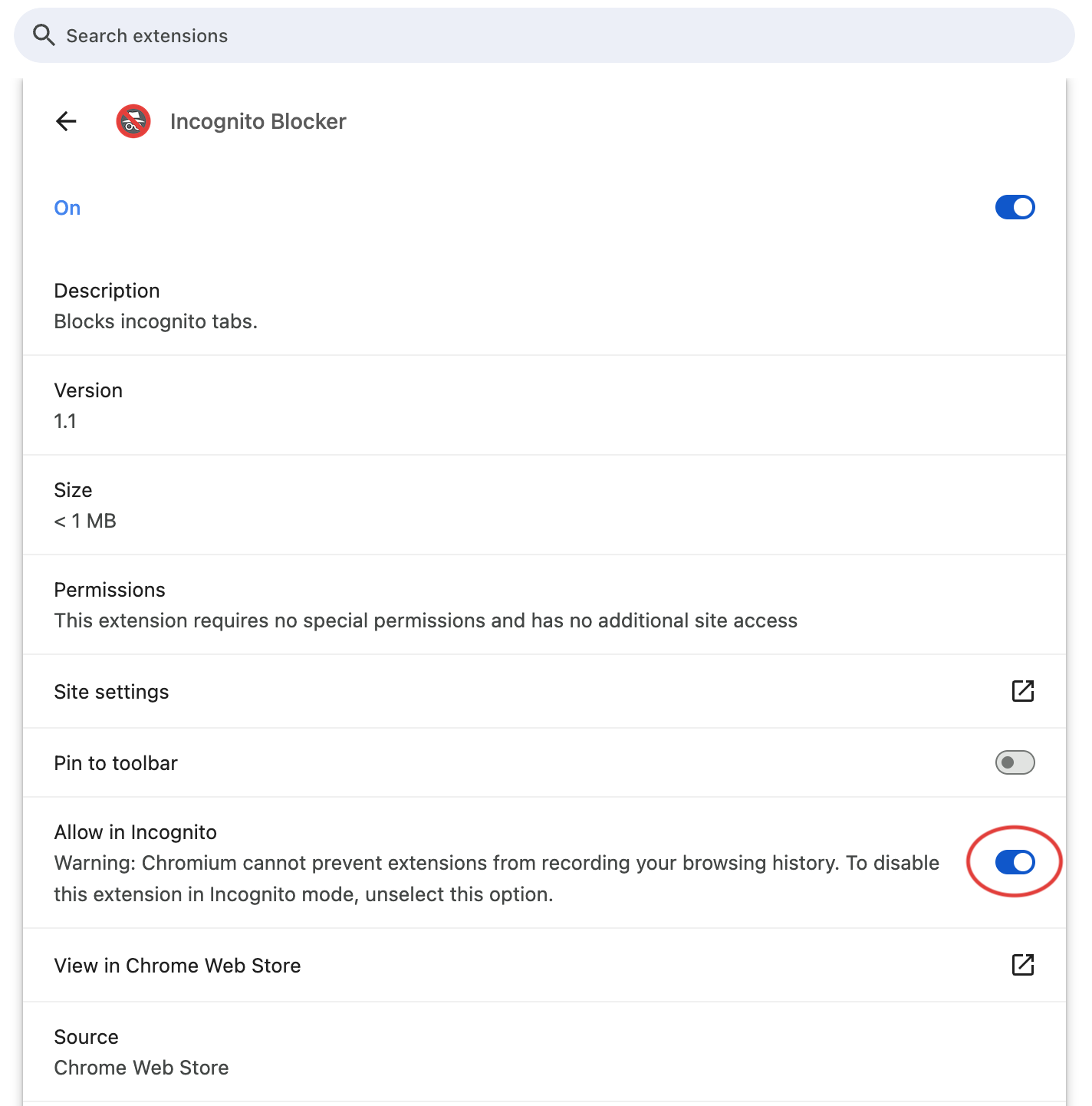
Turn on “Allow in Incognito”
On the details page, scroll down to Allow in Incognito and switch it on. Chrome shows a generic warning here for every extension — Incognito Blocker only ever uses this access to detect and close incognito tabs, nothing else.
That’s it. From now on, any tab that opens in incognito mode closes itself immediately — no further setup, no ongoing maintenance.
Enjoying Incognito Blocker?
If it’s working well for you, a quick rating on the Chrome Web Store helps other people find it too.
Frequently asked questions
Why use Incognito Blocker instead of, say, a system-level restriction?
Because it doesn’t require terminal access, admin rights, or any device management software — installing a browser extension is all it takes. That makes it a practical option for parents, teachers, individuals struggling with internet distractions, or small offices who want to discourage incognito browsing without touching system settings.
Can you add password protection, or otherwise stop someone from disabling the extension?
Unfortunately, no — this isn’t something Chrome allows. Extensions have no API to prevent themselves from being disabled, removed, or having their permissions revoked. That restriction exists specifically so a malicious extension can never lock itself in place; it’s a deliberate limitation, not something we’ve chosen to leave out.
Does it work on Edge, Brave, or other Chromium browsers?
Yes. Incognito Blocker works anywhere Chrome extensions run, including Edge, Brave, Opera, and Vivaldi. The setup steps are identical — just swap chrome://extensions for the equivalent page in your browser (e.g. edge://extensions).
I turned on “Allow in Incognito,” but incognito tabs still aren’t closing. What should I check?
First, make sure any incognito windows that were already open before you flipped the toggle are closed and reopened — the change only applies going forward. If it still doesn’t work, revisit chrome://extensions and confirm the toggle is still on; browser updates occasionally reset extension permissions.
Does Incognito Blocker collect any data, or affect my regular browsing?
No to both. It only ever checks whether a tab is incognito so it can close it — regular browsing is completely untouched, and nothing is collected, logged, or sent anywhere. See our Privacy Policy for details.